
We already wrote about the most popular password recovery method: using Import phpMyAdmin. But some web hosting providers do not offer cPanel or Import phpMyAdmin. What to do in this case? Read this article!
See also: How to reset the password for WordPress through phpMyAdmin
Since WordPress uses a database (typically the MySQL), each hosting provider provides database management system. In this guide, we will use the command line (CMD) MySQL, which is a free database, licensed under the GNU General Public License v2.

Requirements
Recover your password using MySQL CMD involves fewer steps and can be taken as a universal password recovery system. This approach can be used in almost any scenario.
However, you need to have an understanding of database principles and ways to interact with the database. In addition, you also need to know the following technical aspects:
- Name of the database used by your WordPress site
- MySQL server address (IP or hostname)
- User data “root” for MySQL
- User ID and the password that you want to change. Usually, it is 1, as we create the admin user when installing WordPress. Please note that the very name of the administrator user can be anything, and the User ID user will be 1 because it is the first user you created.
Log into the MySQL command line on Windows
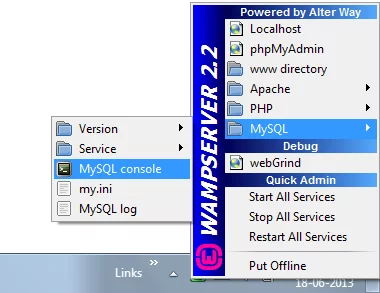
If you have a local version of WordPress on Windows, installed via the WAMP or XAMPP, then to run MySQL CMD click on the icon WAMP → MySQL → MySQL console.
This does not allow you to enter any more commands that you don’t need. Go to the next step.
Log in to the command line MySQL on Linux
Most providers shared hosting, VPS, physical servers using the Linux, for example – CentOS, Debian, Fedora or Ubuntu.
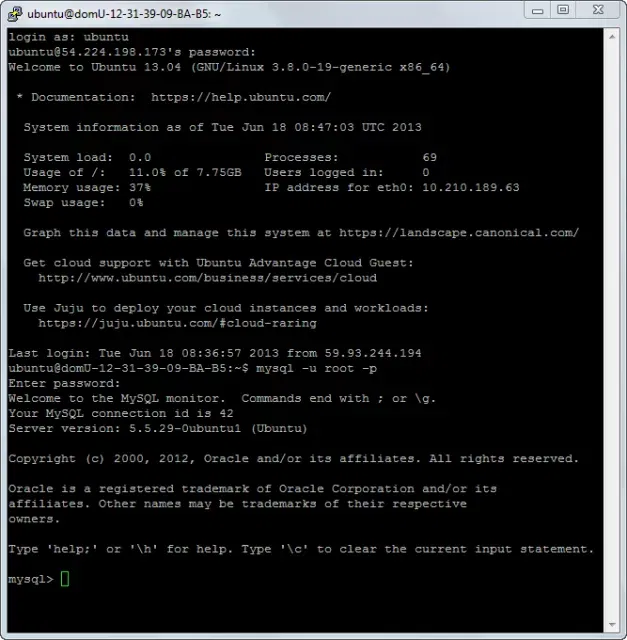
If you have a local version of the WordPress site on Linux through the LAMP, just run the terminal emulator and type:
mysql -u root -p
If you are trying to reset the password on the remote server, connect to SSH using any SSH-client, such as the Putty. Once you have logged in to the remote server, log in to the MySQL using the following command:
mysql -u root -p <password>
Reset WordPress Password
Now that you have access to MySQL CMD, designated as the console ‘mysql> ‘, it is time to make magic. Well, not magic – just good old MySQL commands.

use:
- WordPress database name: wp_genesis
- User ID: 1
- New password: WPEXPLORER
A little “magic”
Enter the following commands:
use wp_genesis;
SELECT ID, user_login, user_pass FROM wp_users;
UPDATE wp_users SET user_pass = MD5('WPEXPLORER');
If the last command is not working as well as in the screenshot, remove the single quotation marks and enter them manually. That should work.
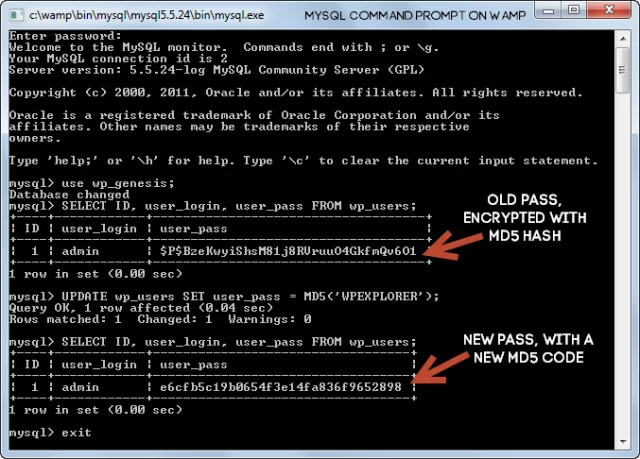
This will reset the user password and the administrator changes it to WPEXPLORER. Of course, when you assign a new password you will need to use a more complex password. Once you have done this, you can exit from MySQL CMD with the command:
exit
Conclusion
I want to remind you that the recovery of the password using phpMyAdmin is easier and 90% of the web hosting companies provide it. But if you have some free time, I would recommend trying this option because it will give you some experience using MySQL commands and databases. Who knows, maybe it will come in handy in the future.